





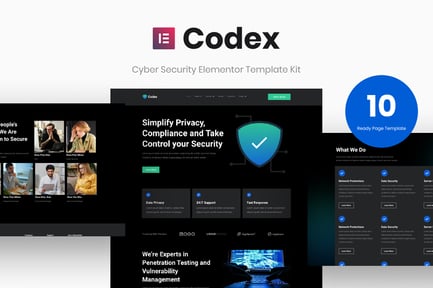
Codex - Cyber Security Elementor Template Kit
By RockboyStudioUnlimited downloads from $16.50/month
- 26+ million premium assets & templates
- Full AI stack: video, image and audio gen
- Lifetime commercial license
- Easy cancelation
- Updates includedPersonalized support not included
- Compatible With
- Elementor
- Commercial License
- Further Information
Description
Codex - Cyber Security Elementor Template Kit is the perfect solution for Cyber Security websites. designed for software house, businesses, or any type of person or business who wants to showcase their, services, and professional ways. The Kit template is responsive and mobile-ready which makes it adaptable to any modern device, built with Elementor Free and also easy to customize.
Features
- Elementor Free Version (Elementor Pro not required)
- 10+ Ready made Pages
- Fully Customizable & Responsive Layouter
Page Templates
- Home
- About Us
- Services
- Service Details
- Pricing
- Contact Us
- FAQ
- Blog
- Single Post
- Case Study
Templates
- Header
- Footer
- Contact Form (MetForm)
Plugin Dependencies (installed from kit)
- Elementor Page Builder
- ElementsKit Lite
- Elementor – Header, Footer & Blocks
- MetForm
How to Install:
- Install and Activate the “Envato Elements” plugin from Plugins > Add New in WordPress
- Do not unzip
- Go to Elements & Installed Kits and click the Upload Template Kit button.
- Before importing a template, ensure the Install Requirements button is clicked to activate required plugins
- For best results, do not import more than one template at a time.
Detailed Guide: https://help.market.envato.com/hc/en-us/articles/900000842846-How-to-use-the-Envato-Elements-WordPress-Plugin-v2-0%22
For further support, go to Elementor > Get Help in WordPress menu.
How to import Metforms and content blocks
- Import the metform block templates
- Import the page template where the form appears and right-click to enable the Navigator
- Locate and select the Metform widget and click Edit Form. Choose New, then Edit Form. The builder will appear
- Click ‘Add Template’ grey folder icon.
- Click ‘My Templates’ tab.
- Choose your imported metform template, then click ‘Insert’ (click No for page settings).
- Once the template is loaded, make any desired customizations and click ‘Update & Close’ The form will appear in the template
- Click Update
Setup Global Header and Footer in Header Footer & Blocks plugin
- Import the header and footer template
- Go to Appearance > Elements Kit and click Add New button
- Give it a title and select Header, Display on Entire Site, Activation On and click Edit Content
- Click the gray folder icon to access My Templates tab and select the header template to import and Update.
- Repeat for Footer
Online Help Guide: https://www.orangepexels.com/baxter/help-guide/
Image Collection https://www.envato.rseotools.com/collections/WSPFM4NBK6


.jpg?w=433&cf_fit=scale-down&q=85&format=auto&s=a0dc1958c0d51bb5b147fec20b7ee19589c5caa7f19220535e41690f6a44cbb0)