
Learn how to craft a motion design AI video using a seamless VideoGen and After Effects workflow.


AI video tools have made it faster than ever to generate stunning base visuals, but the real magic often happens in post-production. When you combine motion design AI video techniques with After Effects, you can take an experimental clip from VideoGen and transform it into a polished piece of professional content.
This article walks you through a practical VideoGen and After Effects workflow, from importing your AI-generated clips to layering in text, logos, and cinematic effects. The combination of VideoGen’s creativity and After Effects’ precision gives you the best of both worlds!
Why use AI with motion graphics?
Before diving into the practical steps, it’s helpful to pause and ask why not use AI alone? VideoGen can give you a great starting point, but it doesn’t replace the finishing touches that come from motion design.
Speed meets polish
VideoGen can create striking clips in minutes, but the results may feel unfinished. By setting up a VideoGen and After Effects workflow, you can turn those drafts into refined videos. Titles, smooth animations, and layered effects bring order and clarity without losing the speed advantage that AI provides.
Adding AI graphics and After Effects techniques (such as clean typography, logo reveals, and color adjustments) ensures that your motion design AI video feels professional from start to finish.
Creative flexibility
Working with a VideoGen and After Effects workflow also gives you more freedom. You’re not limited to whatever the AI generates; you can adjust the pacing, track text onto moving elements, or weave in overlays and VFX. This type of creative control helps your AI-generated graphics in the After Effects project feel personal and distinctive, rather than resembling stock AI output.
The best of both worlds
Instead of thinking of VideoGen and After Effects as separate tools, it helps to see how they work together. VideoGen provides you with quick ideas and visuals to start from, while After Effects allows you to refine those clips, adding structure, design elements, and polish. The result is a motion design AI video that feels fresh and also professional enough to share with clients or publish online.
Generate your base video with VideoGen
To begin your VideoGen After Effects workflow, you’ll need a strong base clip from VideoGen. Here’s how to get started:
1. Write a clear prompt
When it comes to prompting, you can use this simple structure to get started:
[subject] + [action] + [setting] + [lighting] + [mood/genre] +
This will usually give you decent results. But if you’re looking for a more in-depth guide to creating prompts for AI artwork, check out the complete guide to AI video prompts for some inspiration.
2. Access VideoGen
Now, head over to Envato VideoGen and sign in with your Envato account. You’ll land on a clean, simple dashboard where you can start a new video.

3. Aspect ratio and audio
Select the aspect ratio you want your final video to have, and ensure that the audio toggle is switched “on” if you want your final video to have sound (note that only 16:9 is available with audio).

4. Write your prompt
Here’s where your prompt comes in. Add a detailed description of the scene you want to create in the prompt box.

5. Generate video
Click the “Generate” and let VideoGen do the heavy lifting. Once that’s done, simply download your video!
Import into After Effects
Once your base clip is ready, the next step in the VideoGen After Effects workflow is bringing it into After Effects for editing. This is where your raw AI footage starts to transform into a polished motion design AI video.
1. Open a new project
Launch After Effects and create a new project by going to File > New Project. Set your composition to match the resolution and frame rate of your exported VideoGen clip. Keeping settings consistent helps avoid playback issues and ensures your AI graphics After Effects project runs smoothly.

2. Import your VideoGen clip
Go to File > Import > File and select your exported video file. Once imported, drag the clip into your timeline. At this stage, you’ll have your AI-generated video sitting in a standard After Effects composition, ready for enhancement.

3. Organise video files
If you’ve generated multiple VideoGen clips, place each in its own composition. This organization makes it easier to swap shots in and out while you build your motion design AI video.
Once you’re done, make sure to save your project. From here, you’ll be ready to start adding motion graphics, text, and effects.
How to add titles and logo animations
Now that your clip is in After Effects, it’s time to add branding and text. Titles and logos help your motion design AI video appear polished and professional, while also clearly indicating who the content belongs to.
1. Choose a template from Envato
Browse Envato for ready-made title and logo animation templates. These are designed to slot directly into After Effects and give your project a professional look in minutes. Templates are especially useful for beginners who want to add AI-generated graphics in After Effects and refine their work without starting from scratch.
When choosing templates, ensure that you check the After Effects box located on the left to filter through all the supported applications available. You can also filter through options such as categories, plugins, and resolution.


2. Replace the placeholders
Import the template into your After Effects project by going to File > Import and replacing the placeholder text or logo with your own. You can also sometimes adjust things like fonts, colors, and timing so that the animation matches the tone of your VideoGen clip.


3. Position titles in the scene
Drag your text or logo layers onto the timeline above your VideoGen clip. Adjust their position so they don’t distract from the main subject (e.g., a lower-third placement works well for names or subtitles).

How to add LUTs, overlays, and VFX packs
Once your titles and animations are in place, the final step is to give your project style and atmosphere. Envato offers a diverse range of LUTs, overlays, and VFX packs to help your motion design AI video appear cinematic and consistent.
1. Apply LUTs for color grading
LUTs are preset color grades that instantly change the mood of your video. Simply download a LUT that you like from Envato, and then import it into your project by going to File > Import and then applying the LUT to your video.


2. Add overlays for texture
Overlays such as light leaks, film grain, or glitch textures can add depth to your VideoGen clip. Download an overlay that you like from Envato.
Then simply drag an overlay file onto your timeline, place it above your footage. You may also need to switch the blending mode to Screen or Overlay.


3. Use VFX packs for impact
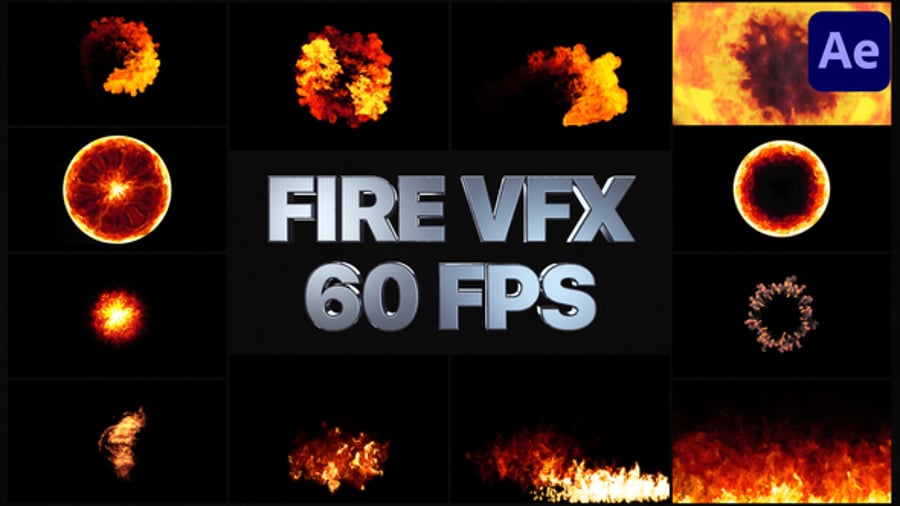
Envato also offers pre-made VFX assets like particle bursts, smoke, fire, and energy effects. Import them just like any other video file, then scale and position them in your scene.



Balancing AI and motion design
Working with AI and motion graphics is most effective when you strike a balance. When you’re adding effects, sometimes keeping it simple works better. Stick to one or two LUTs, use a subtle overlay, and only use VFX shots where absolutely necessary. Going overboard can pull attention away from the main visuals, while a measured approach helps your VideoGen After Effects video look more polished.
Whether the goal is a short promo, a client-ready presentation, or just testing ideas, using AI graphics After Effects tools gives your motion design AI video the extra quality it needs. VideoGen helps you move fast, and After Effects gives you the control to finish strong. Together, they create a practical and flexible workflow that you can use repeatedly.
Motion design AI video FAQs
What is the easiest way to create AI videos as a beginner?
One of the simplest ways to make AI videos is by using a browser-based tool like Envato VideoGen. Just type in a simple description of what you want to see (called a prompt), and the AI will generate a video clip in seconds. No editing or technical skills required, perfect for beginners who want quick results.
Can I use VideoGen clips directly without After Effects?
Yes, but adding motion graphics and overlays from Envato will make your videos feel even more polished and professional.
Do I need to know advanced After Effects to use this workflow?
Not at all! Most steps in this guide are suitable for beginners. Just drag and drop your clip(s) into After Effects and you’re good to go! A motion design AI video doesn’t have to be complicated to look professional.
What’s the easiest way to add branding to my AI video?
Just import your AI video into After Effects. Then look for a title or logo animation template. You can get one of these from Envato, which has a wide selection that works directly in After Effects. Once you’ve found one that you like, simply import the template into the same project to use them both! These templates help you apply branding quickly, without needing to animate from scratch.
Which file format should I export from VideoGen?
Video clips from VideoGen are automatically downloaded as an MP4 video file format. This maintains a high resolution and helps ensure that your AI-generated After Effects edits, such as LUTs and VFX packs, look sharp.
How do I write a good prompt to create AI videos?
A good AI video prompt includes [subject + action + setting + mood + lighting + camera style]. For example: “A woman in a flowing red dress walks slowly through a misty forest at night, with a dramatic cinematic close-up.” The more specific you are, the better your AI-generated video will look.


